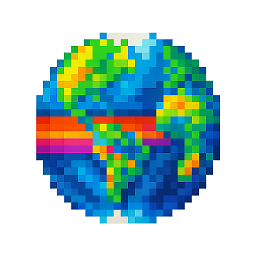
How to Draw on Wplace: Step-by-Step Guide (2025)
Wplace is a collaborative digital canvas that overlays a massive pixel grid onto a real-world map, allowing users worldwide to contribute pixel art in real-time. Since its launch in July 2025, this platform has attracted millions of users, creating a vibrant community where digital artists can collaborate on a 4-trillion-pixel canvas. With a 30-second cooldown system that restores one pixel at a time, Wplace encourages strategic thinking and community collaboration over rapid automation.
Whether you're a digital artist, pixel art enthusiast, or just curious about collaborative creativity, this guide will get you drawing on Wplace within 5 minutes. You'll learn the essential mechanics, master the tools, and discover how to create lasting artwork in this dynamic digital world.

Step 1 — Place Your First Pixel (Desktop & Mobile)
Getting started on Wplace is straightforward, but understanding the core mechanics will save you time and frustration. The platform operates on a pixel-based economy where every placement counts.
Accessing Wplace
- Navigate to wplace.live in your web browser
- Create an account - typically requires login with Google or Twitch account to place pixels
- Explore the interface - familiarize yourself with the world map and color palette
- Zoom to your desired location using mouse scroll or trackpad gestures
Understanding the Color System
Wplace provides a limited color palette that may vary with updates:
- Free Colors: Available to all users (exact count may change)
- Premium Colors: May require in-platform currency or purchases to unlock
For beginners, the free color selection provides sufficient options to create impressive artwork. Many successful projects use only the freely available colors. Check the current client interface for exact color counts and unlock requirements.

The Pixel Placement Process
- Select your color from the available palette in the interface
- Click on the desired location on the map where you want to place your pixel
- Confirm the placement - your pixel will appear immediately
- Wait for cooldown - you must wait 30 seconds before placing another pixel
Mobile Optimization Tips
When using Wplace on mobile devices:
- Use touch and zoom gestures for precise positioning (specific interactions may vary by device and browser)
- Pinch to zoom for better accuracy
- Use landscape mode for a wider view
- Enable full-screen browsing to maximize canvas space
Understanding the Cooldown System
The cooldown mechanism is central to Wplace's collaborative philosophy:
- New users start with a limited pixel pool (exact amount may vary and is subject to change)
- The system typically restores one pixel every 30 seconds automatically
- Maximum pool may increase with continued participation and platform engagement
- Default cooldown timing applies to all users (any premium features should be confirmed via official announcements)
This system prevents spam, encourages thoughtful placement, and ensures that large-scale projects require genuine community collaboration. You can monitor your pixel pool somewhere in the interface (location may vary with updates).
Step 2 — Convert Your Image to Official Colors
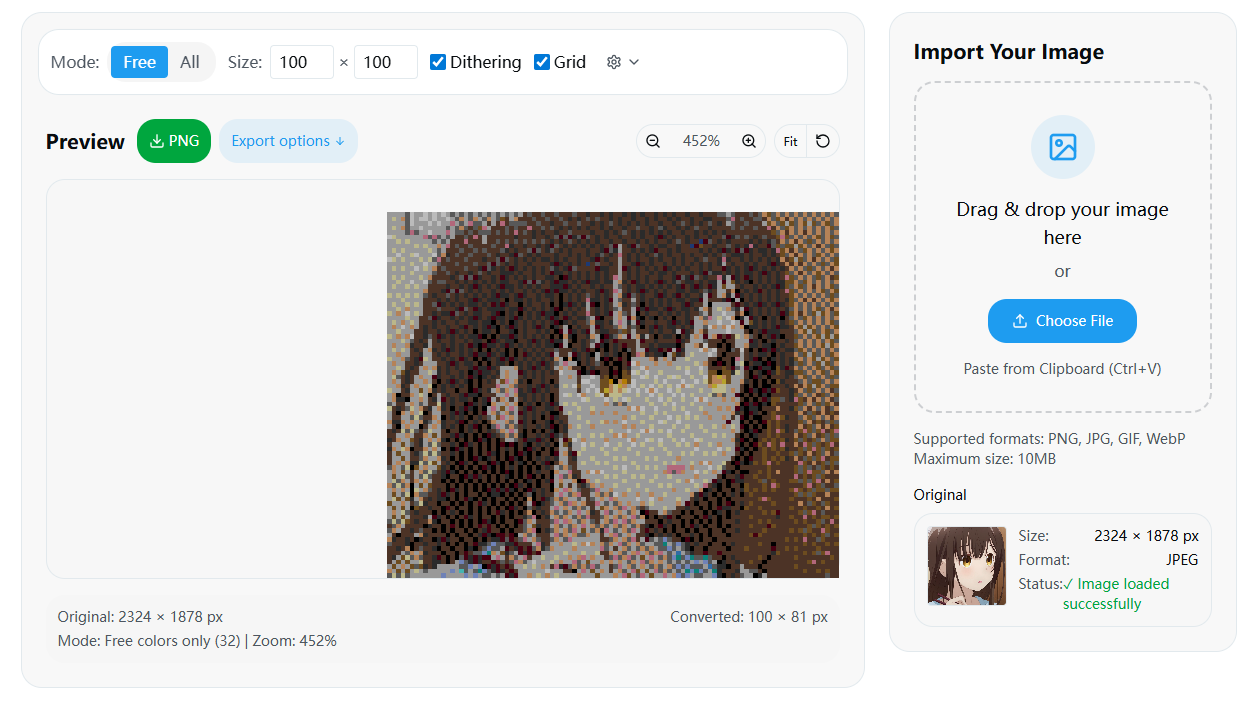
Creating pixel art on Wplace often starts with converting existing images to match the platform's color palette. This process requires understanding color theory, optimization techniques, and the platform's technical limitations. Our Color Converter tool streamlines this process with advanced algorithms.
CIEDE2000 Color Matching
Many color conversion tools use CIEDE2000 algorithms to find the closest matches between your original colors and Wplace's palette. These are general image processing techniques, not official Wplace requirements, but they can help maintain visual fidelity when working with limited palettes.
Benefits of advanced color matching:
- More accurate color representation
- Better preservation of image details
- Reduced color banding artifacts
- Optimal use of available palette colors
Note: Actual results depend on how colors appear in the platform itself.
Dithering Techniques
Dithering adds texture patterns to simulate colors not available in the palette:
- Floyd-Steinberg dithering: Distributes color errors to adjacent pixels
- Ordered dithering: Uses predetermined patterns for consistent results
- No dithering: Maintains sharp color boundaries (recommended for logos)
Choose dithering based on your artwork type: detailed images benefit from Floyd-Steinberg, while simple designs work better without dithering.
Free vs Premium Color Strategy
To maximize the effectiveness of free colors:
- Analyze your source image - identify the dominant color families
- Pre-optimize your design - adjust the original image toward free colors
- Use color reduction tools - limit your palette before conversion
- Test small sections first - verify the conversion quality before committing to large areas
Premium colors are most valuable for:
- Skin tones and subtle gradients
- Corporate logos requiring exact brand colors
- Artistic projects where color accuracy is critical
- Final details and highlights in complex artwork
Addressing Palette Discrepancies
The Wplace community occasionally reports discrepancies between different color reference sources. Current best practices include:
- Using Wplacemaker's official palette as the primary reference
- Cross-checking with community-verified color lists
- Testing color matches on the actual platform
- Monitoring community discussions for palette updates
Step 3 — Template & Overlay: Align Like a Pro
Templates and overlays transform complex artwork from an impossible manual task into an achievable collaborative project. However, using these tools requires understanding coordinate systems, ethical considerations, and technical precision. You can create precise templates using our Template Generator.
Template Export Formats
Modern template tools support multiple export formats:
PNG Templates:
- Use standard alpha transparency channels for accurate overlay
- Maintain 1:1 pixel ratio with Wplace canvas
- Compatible with most overlay tools
- Easy to edit and customize
JSON Templates:
- Contain precise coordinate and color data
- Support structured collaboration and planning workflows
- Include metadata for version control
- Strictly for manual coordination only - automated placement violates platform rules
Coordinate Systems Explained
Understanding Wplace's coordinate systems is crucial for accurate alignment:
Map-based Coordinates:
- Wplace uses a tile-based map system similar to other web mapping platforms
- Different overlay tools may implement coordinate systems differently
- Some tools like Blue Marble display tile coordinates plus pixel offsets within tiles
- Always verify coordinate system with your specific tool's documentation
Best Practices:
- Test alignment with small sections before major projects
- Ensure all team members use the same coordinate reference
- Document your chosen system for consistency
Critical Rules:
- Never mix TL and Px coordinates in the same project
- Always verify coordinate system with your team
- Test alignment with small sections before full deployment
- Document your coordinate system choice for team members
Safe Overlay Installation
Only install overlay tools from verified sources to protect your browser and account:
Verification Guidelines:
- Prioritize official developer repositories on GitHub with clear documentation
- Verify developer identity and check for community warnings about fake extensions
- Review permissions carefully - overlay tools should only need minimal canvas access
- Check recent updates and user feedback from multiple sources
- Avoid tools flagged by developers or community as risky or fraudulent
Installation Best Practices:
- Review permissions - overlays should only need canvas access
- Check update frequency - actively maintained tools are safer
- Read user reviews - look for recent feedback about functionality
- Test with small projects before using on major artwork
- Keep tools updated - install updates promptly for security
Overlay Ethics and Compliance
Permitted Uses:
- Visual alignment assistance for manual placement
- Coordinate reference for team collaboration
- Progress tracking for long-term projects
- Educational purposes and demonstrations
Prohibited Activities:
- Automated pixel placement
- Circumventing cooldown restrictions
- Griefing or vandalism assistance
- Any form of botting or scripting
Remember: overlays are tools for visualization and coordination, not automation. The joy of Wplace comes from the collaborative human effort, not from automated systems.
Safety & Rules: What's Allowed (and What Isn't)
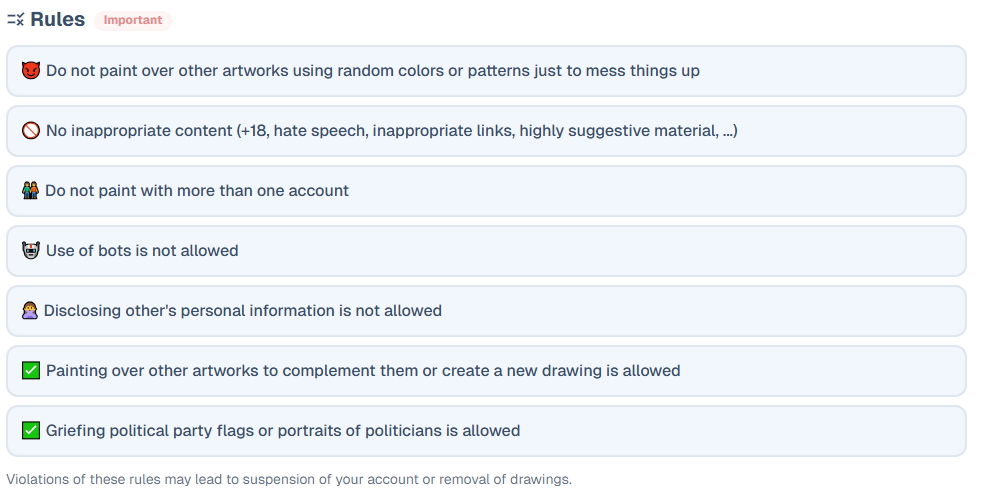
Understanding Wplace's rules and community standards is essential for maintaining a positive experience and avoiding account restrictions. The platform balances creative freedom with community protection through clear guidelines. For comprehensive rule explanations, visit our Wplace Rules Guide.
Creative Expression vs. Destructive Behavior
Generally Accepted Activities:
- Original creative work in available spaces
- Collaborative improvements with community coordination
- Community projects with organized team efforts
- Cultural and memorial tributes that respect community values
Clearly Prohibited Behavior:
- Malicious vandalism using random colors or destructive patterns
- Griefing - targeting specific users or communities for harassment
- Hate symbols - any imagery promoting discrimination or violence
- Unauthorized commercial advertising or promotional content
- NSFW content - adult or inappropriate material
For boundary cases involving existing artwork, consider community discussion before making changes.
Automation and Multi-Account Policies
Wplace strictly prohibits automation to maintain the platform's collaborative spirit:
Forbidden Automation:
- Bots or scripts that place pixels automatically
- Tools that bypass the 30-second cooldown system
- Coordinated multi-account operations
- Any form of programmatic pixel placement
Permitted Assistance:
- Manual overlay tools for visual guidance
- Color conversion utilities for planning
- Coordinate calculators for team organization
- Community communication tools
Reporting and Community Protection
When you encounter rule violations:
- Use the built-in report function - click the flag icon near problematic content
- Provide clear descriptions - explain what rule was violated
- Include coordinates - help moderators locate the issue quickly
- Follow up appropriately - avoid vigilante justice or retaliation
For detailed reporting procedures and evidence gathering tips, see our guide on how to report violations on Wplace.
Reporting Channels:
- In-platform reporting system (primary method)
- Official support email as listed in Terms of Service for serious violations
- Do not rely on unofficial Discord servers as formal reporting channels
The community's self-policing efforts, combined with active moderation, help maintain Wplace as a creative and welcoming space for artists worldwide.
Troubleshooting: Lag, Rate Limits, and Misalignment
Technical issues can disrupt your Wplace experience, but most problems have straightforward solutions. This troubleshooting guide covers the most common issues and their fixes.
Server Status and Performance Issues
Before assuming your setup is the problem, check if Wplace itself is experiencing issues:
Self-Check Procedure:
- Check official announcements - monitor the platform's official social media (@wplacelive) for updates
- Test basic functionality - try zooming and panning without placing pixels
- Compare with other users - ask in community channels if others have similar issues
- Clear browser cache - force reload with Ctrl+F5 (Windows) or Cmd+Shift+R (Mac)
- Use our status checker - visit our Wplace Status Monitor for real-time diagnostics

Common Performance Solutions:
- Close unnecessary browser tabs to free up memory
- Disable unused extensions that might interfere with canvas rendering
- Switch to incognito mode to test without extensions
- Try a different browser if issues persist
Rate Limiting and Cooldown Problems
If you're unable to place pixels despite showing available pixels in your pool:
Diagnostic Steps:
- Verify your cooldown status - check the timer in the interface
- Refresh the page - sometimes the interface doesn't update properly
- Wait for the next restoration cycle - cooldowns apply even with pixels in pool
- Check for account restrictions - temporary limits may be applied for rule violations
Rate Limiting Factors:
- Network latency affecting timing calculations
- Browser time synchronization issues
- VPN or proxy causing connection irregularities
- Multiple tabs or devices accessing the same account
Template Alignment Issues
Misaligned templates are one of the most frustrating problems for collaborative projects:
Common Alignment Problems:
Coordinate System Confusion:
- Problem: Template appears in wrong location
- Solution: Verify TL vs Px coordinate system usage
- Prevention: Document coordinate system choice clearly
Scaling Issues:
- Problem: Template appears too large or small
- Solution: Ensure 1:1 pixel ratio between template and canvas
- Prevention: Use templates generated specifically for Wplace
Transparency Problems:
- Problem: Template blocks view of existing pixels
- Solution: Ensure template uses proper alpha transparency channels
- Prevention: Test template transparency before sharing with team
Browser Compatibility:
- Problem: Overlay doesn't display correctly
- Solution: Update browser and overlay tool to latest versions
- Prevention: Use supported browsers (Chrome, Firefox, Edge)
Network and Connectivity Solutions
Optimize Your Connection:
- Use wired internet when possible for stability
- Close bandwidth-heavy applications (streaming, downloads)
- Switch to a different network if experiencing persistent issues
- Consider using a different DNS server (8.8.8.8 or 1.1.1.1)
Browser Optimization:
- Keep browser updated to the latest version
- Clear cache and cookies periodically
- Disable hardware acceleration if experiencing rendering issues
- Adjust zoom level to 100% for best performance
Team Play: Plan, Pace, and Protect Your Art
Collaborative projects on Wplace require careful coordination, strategic planning, and community engagement. Success depends on effective teamwork and understanding of the platform's social dynamics.
Cooldown-Based Scheduling Strategies
Effective team coordination revolves around the 30-second cooldown system:
Shift Scheduling:
- Time zone coverage - recruit team members across different time zones
- Peak hour coordination - plan intensive sessions during high-activity periods
- Maintenance windows - assign specific team members to repair and protect artwork
- Emergency response - have rapid-response teams for defending against vandalism
Resource Allocation:
- Priority mapping - identify critical pixels that need immediate attention
- Border security - establish perimeters before filling internal areas
- Detail phases - save fine details for when basic structure is secure
- Backup coordination - maintain multiple templates and coordinate backups
Border-First Construction Methodology
The most successful large-scale projects follow a proven construction sequence:
Phase 1: Establish Borders
- Clearly define the outer boundaries of your artwork
- Create recognizable shapes that signal intentional design
- Use contrasting colors to make borders obvious to other users
- Establish corner anchors first, then connect with lines
Phase 2: Fill Core Areas
- Work from borders inward to maintain structural integrity
- Prioritize large color blocks over detailed elements
- Leave placeholders for detailed work in later phases
- Maintain consistent color choices to show project coordination
Phase 3: Add Details and Refinements
- Save fine details for when the basic structure is secure
- Use premium colors strategically for maximum impact
- Add shading, highlights, and texture elements
- Implement final touches and signature elements
Backup and Version Control Strategies
Protecting your collaborative investment requires systematic backup approaches:
Template Management:
- Version control - maintain numbered template versions with timestamps
- Coordinate documentation - record exact placement coordinates for each version
- Color mapping - document any palette changes or optimizations
- Team access - ensure all team members have current template versions
Progress Documentation:
- Screenshot archives - regular progress photos with timestamps
- Coordinate logs - track placement progress by team member
- Issue tracking - document vandalism incidents and repair efforts
- Success metrics - monitor completion percentages and team participation
Collaboration Etiquette and Communication
Communication Best Practices:
- Clear role definition - assign specific responsibilities to team members
- Regular check-ins - schedule team meetings for progress updates
- Conflict resolution - establish protocols for disagreements about design choices
- Recognition systems - acknowledge contributions from all team members
Community Engagement:
- Respectful interaction with neighboring projects
- Diplomatic negotiation when space conflicts arise
- Alliance building with other teams for mutual protection
- Mentorship of new community members learning collaborative techniques
Project Leadership:
- Vision communication - clearly explain the project goals and aesthetic
- Resource management - efficiently allocate team member time and effort
- Quality control - maintain artistic standards while encouraging participation
- Timeline management - set realistic goals and adjust expectations as needed
FAQ (Frequently Asked Questions)
How do I start drawing on Wplace?
Visit wplace.live, create an account (typically requires Google or Twitch login), select a color from the palette, and click on the map to place your first pixel. New users start with a limited pixel pool, and the system typically restores one pixel every 30 seconds.
Do I need overlays to draw?
No, overlays are optional tools that help with alignment and collaboration. They provide visual assistance for complex projects but are not required for basic pixel placement. Never use overlays for automated placement.
Which overlay is safest?
Prioritize tools from verified developer repositories on GitHub. Always verify the developer's identity and check for community warnings about counterfeit extensions. Review permissions carefully and avoid tools that have been flagged by their original developers as risky.
Why don't my colors match?
Color differences occur due to compression and dithering during conversion. Try using Free-only mode with CIEDE2000 color matching for better results, and test small sections before committing to large areas.
What are TL and Px coordinates?
TL coordinates are tile-based (used by Blue Marble), while Px coordinates are pixel-based positioning. Never mix these systems in the same project - choose one and stick with it for consistency.
Is overwriting allowed?
Wplace prohibits malicious vandalism using random colors or destructive patterns. For creative projects near existing artwork, consider community discussion and coordination to avoid conflicts and maintain positive relationships with other artists.
Why can't I place pixels now?
Check your pixel pool status and cooldown timer. If you have pixels available but still can't place, try refreshing the page or use our Wplace Status Checker for maintenance announcements and diagnostics.
Get Started with Wplacemaker Tools
Ready to transform your Wplace experience? Our comprehensive tool suite provides everything you need to create professional-quality pixel art through a streamlined three-step process: Convert → Template → Align.
Privacy-First, Local Processing
All Wplacemaker tools prioritize your privacy by processing images locally in your browser. Your artwork and templates never leave your device unless you choose to share them, ensuring complete control over your creative work.
Complete Tool Ecosystem
Color Converter - Transform any image into Wplace-compatible colors using advanced CIEDE2000 matching algorithms.
Wplace Palette - Access the complete color palette with instant downloads in multiple formats (ASE, GPL, PNG, TXT).
Template Generator - Create precise templates with coordinate data for perfect alignment.
Blue Marble Integration - Seamless compatibility with the most popular overlay tool in the Wplace community.
Overlay Pro Support - Full template support for advanced overlay features and team coordination.
Wplace Status Monitor - Real-time status monitoring to diagnose connection and performance issues.
Wplace Rules Guide - Comprehensive community guidelines and safety information for responsible participation.
Whether you're creating your first pixel art or coordinating a massive collaborative project, Wplacemaker provides the tools and guidance you need to succeed on Wplace. Start your creative journey today and join millions of artists contributing to the world's largest collaborative canvas.
Last updated: September 16, 2025 | Written by the Wplacemaker team